
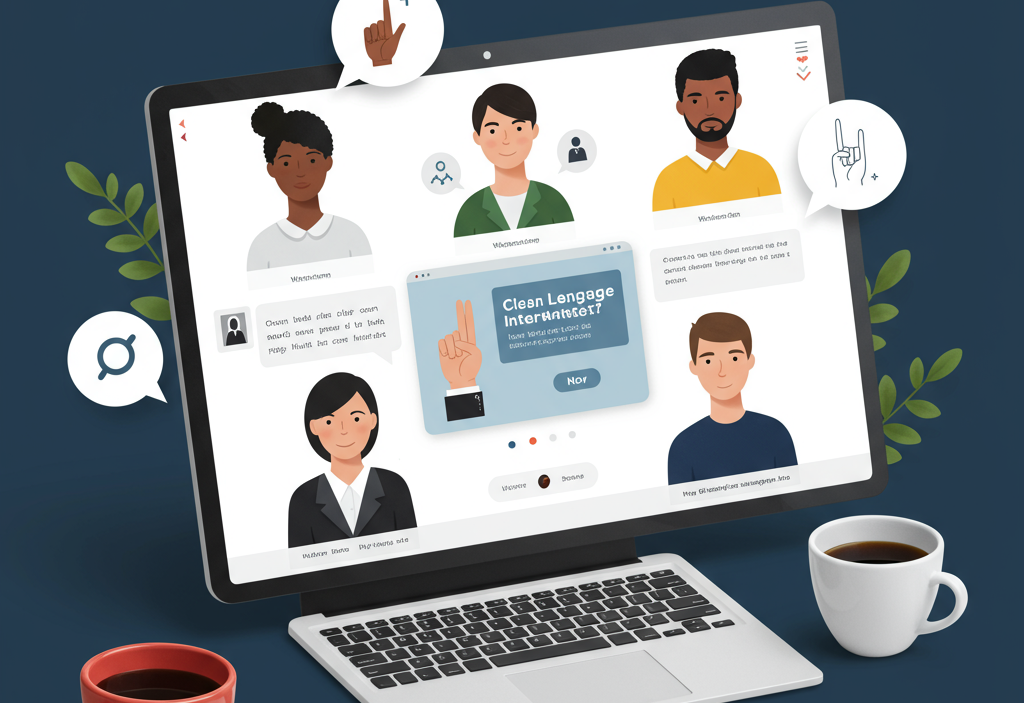
Making webinars accessible ensures all participants—including those with disabilities—can engage fully. By implementing captions, transcripts, keyboard navigation, high-contrast slides, alt text, and assistive technology testing, brands expand reach, improve user experience, and demonstrate commitment to inclusion and equity.
Webinars are powerful tools for education, marketing, and community building. But without thoughtful design, they risk excluding participants with disabilities. According to the World Health Organization, over 1 billion people experience some form of disability—making accessibility a critical consideration for any online event.
Understand Why Accessibility Matters
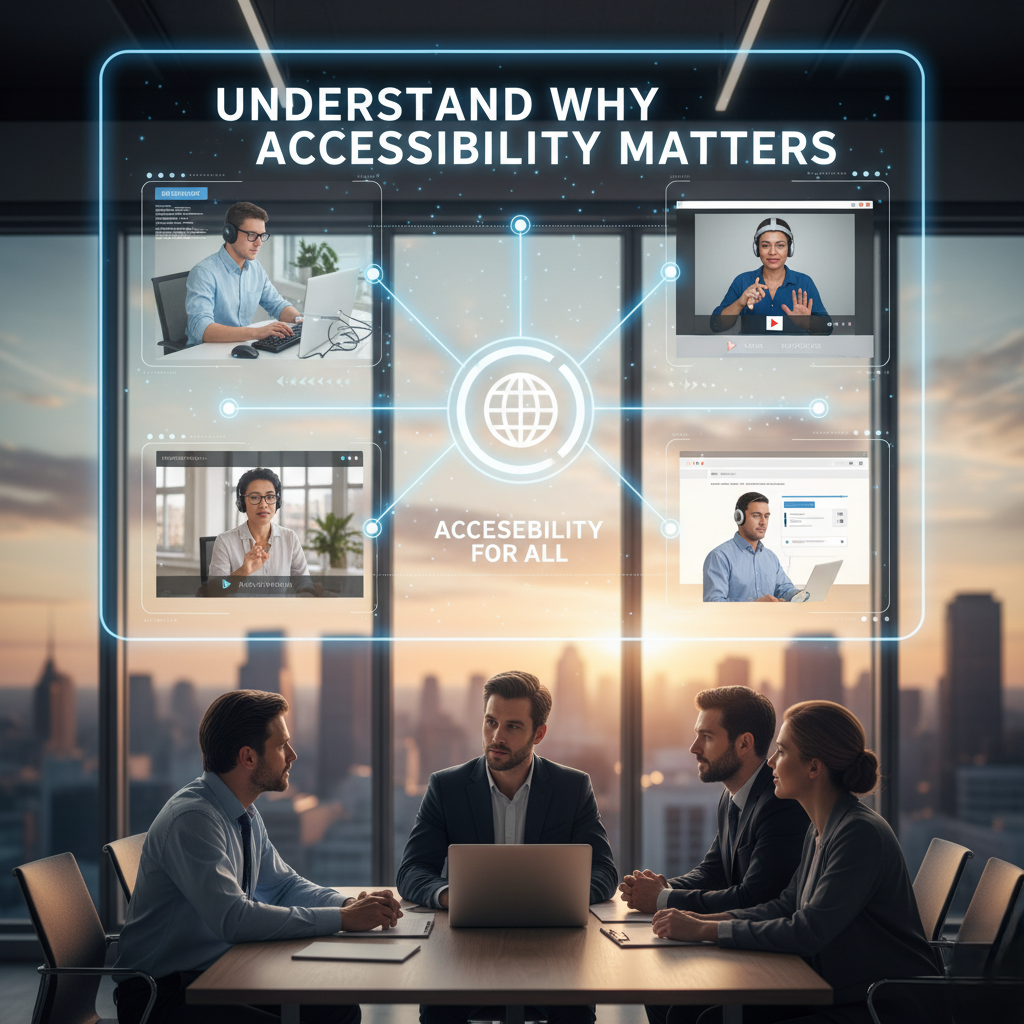
Accessibility isn’t just a legal or moral obligation—it’s a smart business strategy that directly impacts engagement, reputation, and growth. By making your webinars accessible, you:
-
Expand your audience reach: Ensure that people with hearing, vision, mobility, or cognitive impairments can fully participate. This inclusivity allows you to engage a wider demographic, including international attendees, older adults, and those using assistive technologies.
-
Improve overall user experience: Clear structure, intuitive navigation, and thoughtful design benefit all participants, not just those with disabilities. Features like captions, transcripts, consistent layouts, and logical content flow make webinars easier to follow, reduce confusion, and increase engagement for everyone.
-
Demonstrate your brand’s commitment to diversity, equity, and inclusion: Accessible webinars send a strong message that your organization values all users, fostering trust and loyalty. Inclusive practices can differentiate your brand, attract socially conscious audiences, and strengthen your corporate reputation.
-
Mitigate legal and compliance risks: Aligning with standards such as the Americans with Disabilities Act (ADA) and Web Content Accessibility Guidelines (WCAG) ensures your webinars meet regulatory requirements. Proactively addressing accessibility can prevent potential legal challenges while positioning your organization as a responsible industry leader.
By embedding accessibility into your webinar planning and execution, you not only comply with regulations but also create meaningful, engaging experiences that resonate with a diverse audience—turning accessibility into a competitive advantage.
Follow WCAG Principles for Webinars
The WCAG framework is built on four key principles—Perceivable, Operable, Understandable, and Robust (POUR). Applying these to webinars ensures your content is accessible at every stage:
- Perceivable: Content must be presented in ways that all users can perceive. Provide alternatives for visual and auditory elements, such as captions for spoken audio, transcripts for recorded content, and descriptive alt text for images, charts, and infographics. This ensures that participants with hearing or vision impairments receive the same information as others.
- Operable: Make your webinar interface and interactions usable for everyone. Ensure all functionality—such as play/pause buttons, volume controls, chat, polls, and Q&A features—can be accessed via keyboard shortcuts or assistive devices. Provide sufficient time for users to respond to questions, navigate slides, or complete interactive elements.
- Understandable: Design content that is clear and easy to comprehend. Use simple, concise language, descriptive headings, and a consistent layout throughout the webinar. Explain jargon and acronyms the first time they appear. Logical organization and predictable navigation help participants with cognitive disabilities and non-native speakers follow along seamlessly.
- Robust: Ensure your webinar content works reliably across different devices, browsers, and assistive technologies. Test compatibility with screen readers, magnifiers, and other accessibility tools. Robust design helps future-proof your content, maintaining accessibility as technologies and standards evolve.
Provide Live Captions and Transcripts
Captions are essential for attendees who are deaf or hard of hearing—they also help non-native speakers and participants in noisy environments.
- Automated captions: Many webinar platforms offer real-time AI transcription. Review and correct major errors before the event.
- Human-generated captions: For best accuracy, hire a professional captioner via services like Rev or CaptionLink.
- Post-event transcripts: Provide downloadable transcripts so attendees can reference the content later.
Offer Audio Descriptions and Sign Language Interpretation
Visual content such as slide decks, videos, and product demonstrations can often be inaccessible to attendees with vision impairments, making it essential to provide alternative ways to convey the same information. Consider implementing the following strategies:
-
Audio Descriptions: Provide narrated explanations of key visual elements during the presentation or as a separate audio track. For example, describe graphs, charts, product features, or animations so participants who cannot see the visuals still understand the content. Well-timed and clear narration ensures that all users can follow along seamlessly.
-
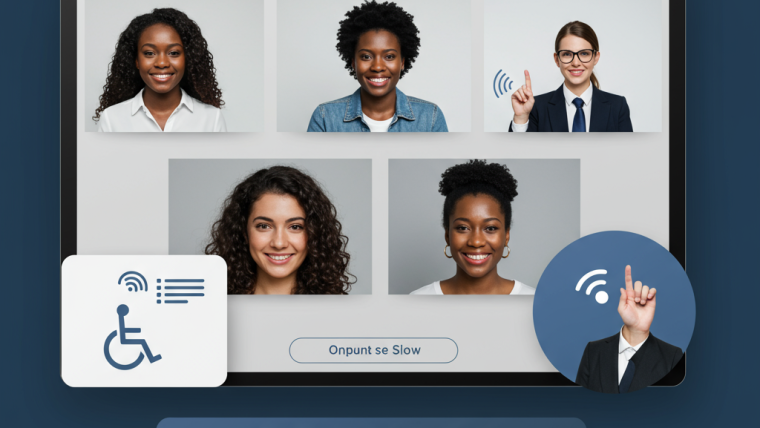
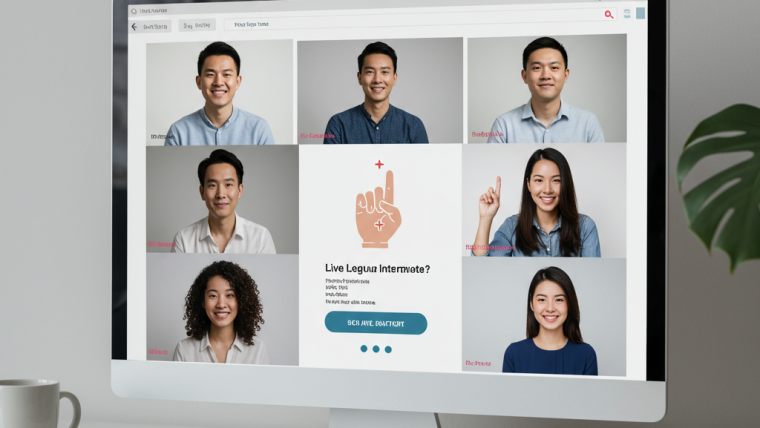
Sign Language Interpreters: For live webinars or events, embed a sign language interpreter’s video feed in a dedicated window. This ensures that participants who are deaf or hard of hearing can fully understand spoken content and engage in real-time interactions. Including interpreters also demonstrates a commitment to inclusivity.
-
Detailed Slide Notes: Share comprehensive speaker notes that describe images, charts, infographics, and animations. Providing these notes as downloadable resources before or after the webinar allows attendees with vision impairments—or anyone needing additional context—to access the content independently and refer back to it at their own pace.
By implementing these approaches, you create a more inclusive webinar environment that allows participants with vision or hearing challenges to engage fully, while enhancing the overall accessibility and professionalism of your event.
Ensure Keyboard Accessibility
Many attendees rely on keyboard navigation or assistive devices. To support them:
- Test all controls: Verify that play/pause, volume, chat, Q&A, and polls can be operated via keyboard shortcuts.
- Visible focus indicators: Make sure focused elements (buttons, links) display clear outlines or highlights.
- Skip links: Allow users to bypass repetitive navigation and jump directly to main content or interactive elements.
Design High-Contrast, Readable Slides
Visual clarity improves comprehension for everyone, especially attendees with low vision or color blindness.
- Color contrast: Aim for a contrast ratio of at least 4.5:1 between text and background (use tools like WebAIM Contrast Checker).
- Font choices: Use sans-serif fonts (e.g., Arial, Verdana) at 24pt or larger for body text.
- Avoid relying on color alone: Use patterns, labels, or icons to convey meaning instead of just color cues.
Add Alternative Text for Images
Alt text allows screen readers to describe images, charts, and infographics to users with vision impairments. Best practices for alt text:
- Be concise but descriptive: “Chart showing 25% webinar registration growth from January to March.”
- Avoid “image of” or “graphic of”; screen readers announce the presence of an image automatically.
- Decorative images can have empty alt attributes (
alt="") so they’re skipped by screen readers.
Simplify Language and Structure
Clear, concise communication benefits all attendees, including those with cognitive disabilities or language barriers.
- Use plain language: short sentences, common words, and active voice Organize content: use headings (and lists for skimmable structure.)
- Define jargon and acronyms on first use, or avoid them entirely
Test with Assistive Technologies
Firsthand testing is the most reliable way to identify accessibility gaps. Recommended tools and methods:
- Screen readers: NVDA (Windows), VoiceOver (macOS/iOS), or TalkBack (Android).
- Keyboard-only navigation: Tab through your entire webinar interface and note any traps or missing focus states.
- Colour-blindness simulators: Tools like Coblis or browser extensions that let you view your slides in different colour-blind modes.
Provide Clear Pre-Event Instructions
Setting expectations and sharing resources upfront empowers attendees to prepare their assistive setups.
- Include instructions for enabling captions, adjusting contrast, and keyboard shortcuts.
- Offer a contact email or chat for accessibility requests, such as sign-language interpretation.
- Share slide decks and transcripts in advance to allow personal review.
Record and Caption On-Demand Versions
An on-demand recording extends your webinar’s reach and accommodates varied schedules or disabilities.
- Ensure the recording retains captions and any interpreter video tracks.
- Offer downloadable transcripts and slide PDFs with alt text.
- Host recordings on accessible platforms that support keyboard navigation and screen readers.
Continuously Improve with Feedback
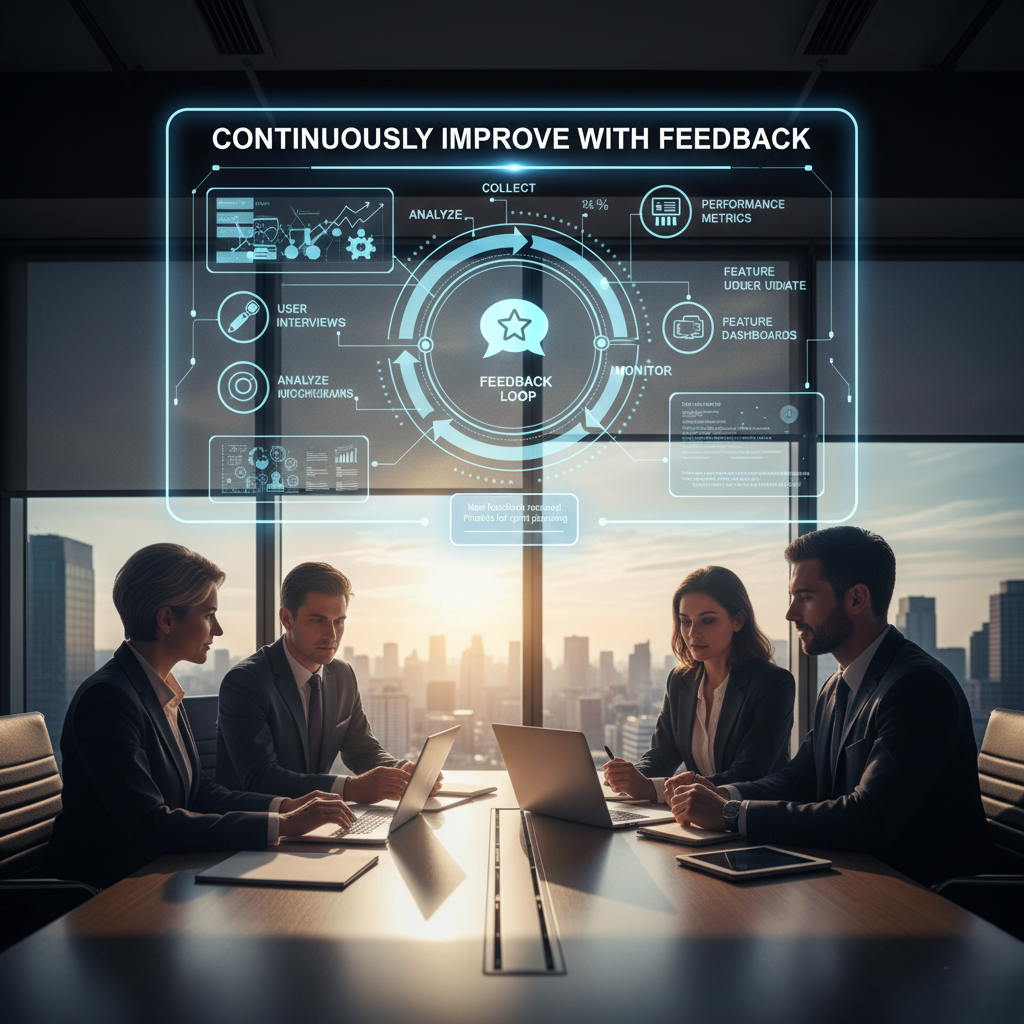
Accessibility is an ongoing commitment. Collect feedback and iterate:
- Survey attendees on the clarity of captions, audio descriptions, and interface usability.
- Track accessibility-related support requests and identify common pain points.
- Stay updated on evolving standards (WCAG 2.2+, ARIA, and platform-specific guidelines).
Conclusion
By integrating these accessibility best practices into your webinar planning and execution, you’ll create inclusive experiences that engage a broader audience, demonstrate social responsibility, and enhance overall user satisfaction. From live captions and keyboard navigation to clear slide design and ongoing testing, each step reinforces your commitment to making knowledge and connection accessible to all. Learn more about How to Boost Webinar Attendance.
Ready to host your next inclusive webinar? Begin by auditing your current setup against these guidelines, and watch your attendance, engagement, and brand reputation soar. Learn more about
Frequently Asked Questions (FAQ)
Q1: What is webinar accessibility?
A: Webinar accessibility ensures that online events can be fully accessed and participated in by people with disabilities, including those with hearing, vision, mobility, or cognitive impairments.
Q2: Why is accessibility important for webinars?
A: Accessibility expands audience reach, improves user experience, supports diversity and inclusion, and helps organizations comply with legal standards like the ADA and WCAG.
Q3: How can I provide captions for webinars?
A: Use automated captions via AI transcription, hire professional captioners for accuracy, and provide post-event transcripts for attendees to reference later.
Q4: What is the role of alt text in webinars?
A: Alt text describes images, charts, and infographics for screen readers, allowing participants with vision impairments to understand visual content.
Q5: How do I ensure keyboard accessibility?
A: Test all controls for keyboard navigation, use visible focus indicators, and include skip links to help users bypass repetitive content.
Q6: How can I make slides more readable?
A: Use high-contrast colors, large sans-serif fonts, avoid relying on color alone to convey meaning, and structure content with headings and lists.
Q7: Should I test with assistive technologies?
A: Yes. Test with screen readers, keyboard-only navigation, and color-blindness simulators to identify and fix accessibility gaps.
Q8: How can I prepare attendees for accessible webinars?
A: Share pre-event instructions for captions, contrast adjustments, keyboard shortcuts, and provide contact details for accessibility requests.
Q9: Can on-demand recordings be accessible?
A: Yes. Ensure recordings include captions, interpreter video tracks, transcripts, and slide PDFs with alt text, hosted on accessible platforms.
Q10: How do I continuously improve webinar accessibility?
A: Collect attendee feedback, monitor support requests, and stay updated on evolving accessibility standards like WCAG 2.2+ and ARIA guidelines.



Webinar Analytics: A Complete Guide to Measuring Success and Improving Performance
The Ultimate Webinar Follow-Up Strategy to Turn Attendees into Customers
Webinar Accessibility Best Practices: How to Make Your Online Events Inclusive for All
Webinar Personalization: Tailoring Content to Audience Segments for Maximum Engagement