

Inclusive webinar accessibility ensures people with hearing, visual, and mobility impairments can participate fully. Using captions, transcripts, keyboard navigation, screen-reader support, and accessible design improves engagement, legal compliance, SEO, and brand inclusivity while extending the long-term value of virtual events.
In an increasingly digital world, webinars have become a cornerstone of virtual learning, marketing, and community building. However, not all attendees experience these events equally. Webinar accessibility ensures that people with disabilities—including those who are deaf or hard of hearing, visually impaired, or have mobility challenges—can fully participate. By implementing inclusive design principles and following best practices, you expand your reach, meet legal requirements, and demonstrate a commitment to diversity and equity.
Why Accessibility Matters

Accessibility is not only a legal obligation in many regions (such as the Americans with Disabilities Act in the U.S. or the Web Content Accessibility Guidelines internationally) but also a moral imperative. When your webinar is accessible, you:
- Reach a broader audience, including attendees with disabilities
- Enhance user experience for everyone, including non-native speakers and those in noisy environments
- Improve SEO and discoverability by providing transcripts and text alternatives
- Demonstrate corporate social responsibility and brand inclusivity. Learn more about Enhancing Webinar Accessibility
Key Accessibility Features for Your Webinar
Below are essential features and strategies to make your webinar accessible from planning through post-event delivery:
- Closed Captions: Real-time captioning helps deaf or hard-of-hearing attendees follow along. Automated captions are a start, but professional captioners ensure accuracy.
- Transcripts: Offer downloadable transcripts of the audio content. This aids search engines and provides an alternative format for all users.
- Sign Language Interpretation: When possible, provide live sign language interpreters in a visible video inset to support attendees relying on ASL or other sign languages.
- Keyboard Navigation: Ensure all interactive elements (polls, chat, Q&A) are accessible via keyboard alone, without requiring a mouse.
- Screen Reader Compatibility: Use semantic HTML and ARIA labels for slide text, buttons, and menus so screen readers can accurately convey information.
- Color Contrast and Font Size: Choose high-contrast text/background combinations and allow scalable fonts for readability by low-vision users.
- Audio Descriptions: Provide brief narrations that describe visual content such as charts, slides, or demonstrations for blind or visually impaired attendees.
Preparing Your Content for Accessibility
Accessibility starts long before the live event. Follow these steps when preparing your slides, materials, and platform setup:
- Use Accessible Slide Templates: Select templates with adequate color contrast and pre-defined heading styles to ensure consistent screen-reader navigation.
- Add Alt Text to Images: Provide descriptive alternative text for any visuals, logos, or icons so attendees using screen readers understand the context.
- Structure Your Content: Organize slides and handouts with clear headings, lists, and logical flow. Avoid cluttered layouts and excessive text blocks.
- Script Your Narration: Prepare a detailed script to support captioners and ensure consistent messaging. Share it with accessibility vendors in advance.
- Choose the Right Platform: Verify that your webinar software supports captions, transcripts, screen-reader compatibility, and keyboard navigation.
Implementing Live Accessibility Features
During the live webinar, maintaining an accessible experience is essential. Coordination between your production team, presenters, and accessibility specialists ensures that all attendees can participate fully and comfortably. Consider these enhanced strategies:
- Captioning Coordination: Test live-caption services before the event to ensure accuracy and minimal lag. Introduce your captioner at the start so attendees know captions are available. Provide options for font size adjustment, background color, or positioning, accommodating users with visual challenges.
- Interpreter Visibility: Position the sign language interpreter video beside the main speaker view, ensuring that the interpreter is clearly visible without obstructing slides or content. Ensure interpreters have clear sightlines to slides and presenters to accurately convey visual cues. For webinars with multiple presenters, coordinate interpreter placement for smooth transitions.
- Verbalize On-Screen Actions: When navigating slides, demonstrating software, or performing live actions, describe all visual elements aloud. Explain charts, graphs, animations, and transitions so visually impaired participants can follow along without missing key information. Encourage presenters to narrate context, not just actions.
- Monitor Chat and Q&A: Assign an accessibility assistant to monitor chat messages and Q&A sections. This assistant can help attendees experiencing technical difficulties, answer questions about accessibility features, and ensure that all participants can engage fully. Consider having multiple assistants for larger webinars.
- Frequent Reminders: Periodically remind attendees about available accessibility features, such as captions, transcripts, dial-in phone options, or sign language interpretation. Include visual and verbal cues to ensure participants are aware of these supports throughout the session.
Additional Best Practices:
-
Use simple and clear language for instructions and explanations.
-
Provide alternative ways to participate, such as submitting questions via email or chat if typing is difficult.
-
Test accessibility features on multiple devices to ensure a consistent experience.
-
Encourage presenters to pause occasionally to allow attendees to process information or catch up with captions.
By proactively implementing these live accessibility measures, you create an inclusive webinar environment where every attendee, regardless of ability, can engage meaningfully with your content. This not only broadens your audience but also enhances engagement, satisfaction, and your brand’s reputation for inclusivity.
Post-Webinar Accessibility and Repurposing
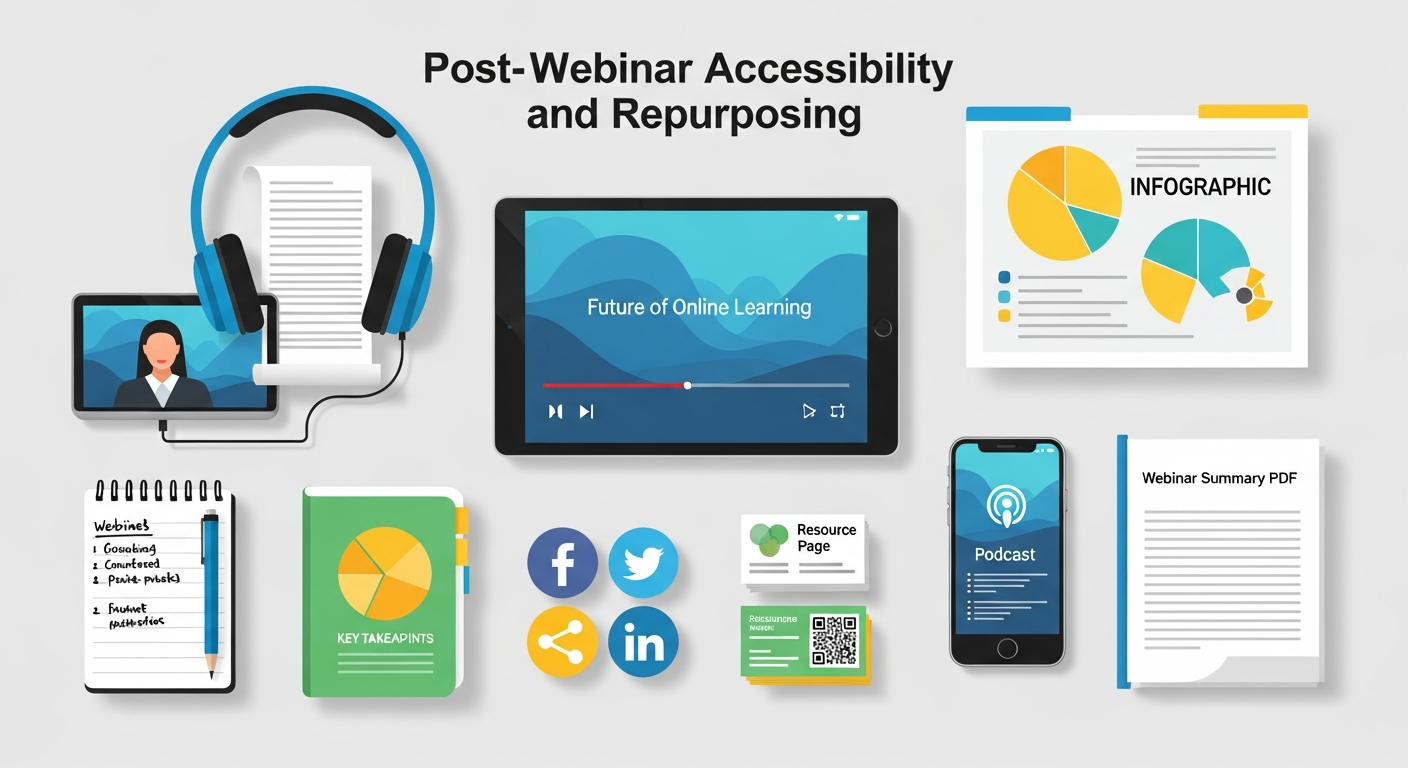
Your responsibility doesn’t end when the webinar concludes. Offering accessible on-demand content maximizes longevity, reach, and impact. Consider expanding your post-webinar accessibility strategy as follows:
Edit and Polish Transcripts: Review automated transcripts for accuracy. Include speaker labels, timestamps, and punctuation for clarity. Ensure technical terms or acronyms are explained for all users. Providing searchable and downloadable transcripts enhances usability for attendees and supports SEO.
Caption the Recording: Embed or overlay captions in the recorded video file before publishing to your website, social channels, or learning management systems (LMS). Offer options for multiple languages or adjustable font sizes to cater to diverse audiences and increase engagement.
Provide Multiple Formats: Offer the slides, audio transcript, and video in separate downloadable formats so attendees can choose the format that best suits their needs. Consider providing PDF slide decks with alt text for images and screen-reader-friendly layouts.
Accessible Landing Pages: Design your webinar replay page with semantic HTML, clear headings, descriptive link text, and keyboard-friendly navigation. Ensure color contrast is sufficient, images have alt text, and interactive elements like video players or download buttons are fully accessible.
Promote Inclusively: Highlight accessibility features in your marketing emails, social media posts, and newsletters to attract an inclusive audience. Mention captions, transcripts, alternative formats, and compatibility with assistive technologies to show commitment to accessibility and increase participation from diverse attendees.
Additional Best Practices:
-
Include audio descriptions for visual-heavy content to assist visually impaired users.
-
Test on multiple devices and screen readers to ensure consistent accessibility.
-
Provide clear instructions for accessing captions, transcripts, or alternative formats.
-
Encourage feedback from attendees with disabilities to improve future webinars.
By following these practices, you ensure your webinar content remains accessible, inclusive, and valuable well beyond the live event, increasing engagement, audience satisfaction, and your brand’s reputation for inclusivity.
Tools and Resources for Accessible Webinars
Several platforms and services specialize in webinar accessibility. Consider integrating one or more of the following:
Zoom Accessibility Features: Built-in captioning, screen-reader support, keyboard shortcuts, and live transcription. Zoom also supports breakout room accessibility and customizable visual layouts to aid participants with varying needs.
WebinarJam and EverWebinar: Offer captioning integrations and customizable accessibility settings. These platforms provide flexible registration forms, adjustable font sizes, and screen-reader-compatible interfaces to ensure all attendees can navigate easily.
3Play Media: Professional captioning, transcription, and audio description services compatible with major webinar platforms. They also offer quality assurance checks and detailed caption editing, ensuring compliance with accessibility standards.
Otter.ai: Automated transcription with high accuracy, speaker identification, and easy export options. Otter.ai supports multi-language transcription, searchable transcripts, and integration with video hosting platforms for on-demand accessibility.
Accessible360 and Deque: Consulting firms that audit and optimize your webinar workflows for full WCAG compliance. They provide accessibility audits, training, and recommendations for platform selection, slide design, and live-event workflows to ensure a fully inclusive experience.
Additional Tools to Consider:
-
Rev.com: Offers fast, human-generated captions, transcripts, and audio descriptions.
-
CaptionSync: Supports real-time and post-event captioning with quality control for diverse audiences.
-
UserWay or AudioEye: Web accessibility tools that help make your webinar landing pages, registration forms, and embedded players compliant with accessibility standards.
-
Descriptive Video Works: Provides professional audio description services for visual content, enhancing accessibility for visually impaired attendees.
By leveraging these tools and services, you can ensure your webinars are inclusive, legally compliant, and provide a better experience for all participants. Combining automated and human-verified solutions often yields the best results, balancing efficiency with accuracy.
Measuring Accessibility Success

To ensure your accessibility efforts are effective, track key metrics and gather feedback:
Caption Viewership: Measure what percentage of attendees enabled captions during the event.
Transcript Downloads: Monitor how often on-demand transcripts are accessed.
Survey Responses: Include accessibility-specific questions in your post-webinar survey to collect qualitative feedback.
Technical Support Tickets: Track support requests related to accessibility to identify pain points.
Engagement Rates: Compare poll responses, chat participation, and Q&A engagement between accessible and non-accessible webinars.
Replay Watch Time: Analyze how long users watch the recorded webinar, especially among those using accessibility features.
Drop-Off Rates: Identify when attendees leave the session to assess whether accessibility barriers affected retention.
Device and Browser Usage: Track which devices and browsers are used to ensure compatibility across assistive technologies.
Interpreter Usage Data: Measure how often sign language interpreter video feeds are enabled during sessions.
Accessibility Feature Adoption: Track how often users activate keyboard navigation, screen readers, or audio descriptions.
Repeat Attendance: Monitor whether accessibility improvements increase return participation among previously registered users.
Social Feedback and Comments: Analyze comments, mentions, and direct messages related to accessibility on social platforms.
Compliance Audit Scores: Use WCAG or platform accessibility audit reports to benchmark technical performance.
Conversion Rates: Compare registrations and post-webinar actions from accessibility-enabled campaigns versus standard ones.
Audience Growth: Measure increases in registrations from diverse or previously underserved audience segments.
By consistently reviewing these metrics, you can pinpoint gaps, validate improvements, and continuously refine your accessibility strategy to deliver more inclusive and high-performing webinars.
Conclusion: Commit to Inclusive Webinars
Prioritizing accessibility in your webinars is a win-win: it broadens your audience, improves engagement, and aligns with ethical and legal standards. By integrating the best practices outlined above—from captions and transcripts to thoughtful platform selection and post-event accessibility—you’ll deliver richer experiences that empower every attendee. Start planning your next inclusive webinar today and set a new standard for online events that everyone can enjoy.
Ready to make your webinars more accessible? Contact our team for an accessibility audit and take the first step toward more inclusive virtual events!
Frequently Asked Questions (FAQ)
1. What is webinar accessibility?
Webinar accessibility means designing and delivering online events so people with disabilities—such as hearing, visual, or mobility impairments—can fully access and participate in the content.
2. Why are captions and transcripts important for webinars?
Captions support deaf and hard-of-hearing users, while transcripts improve understanding for non-native speakers, boost SEO, and allow content to be reused across platforms.
3. Are accessible webinars legally required?
In many regions, yes. Laws like the Americans with Disabilities Act (ADA) and WCAG guidelines require digital content, including webinars, to be accessible.
4. What tools help make webinars accessible?
Popular tools include Zoom accessibility features, 3Play Media for captioning, Otter.ai for transcription, and accessibility audits from firms like Deque and Accessible360.


Webinar Analytics: A Complete Guide to Measuring Success and Improving Performance
The Ultimate Webinar Follow-Up Strategy to Turn Attendees into Customers
Webinar Accessibility Best Practices: How to Make Your Online Events Inclusive for All
Webinar Personalization: Tailoring Content to Audience Segments for Maximum Engagement